

The Record Selektah
Dear fellow record nerds,
Do you love your record collection with all your dusty heart? Do you like to while away the days sitting in front of your speakers, an LP rotating at 33 1/3 rotations per minute, lost in your appreciation for the mystical, intangible expression of artist feeling that is music? And, most importantly, do you suffer from the debilitating paradox-of-plenty when it comes to deciding which of the way-too-many albums you’ve collected and sorted over the years to put on next!?!
Well, do I have the perfect tool for you! Let me present to you: the Record Selektah!
What is Record Selektah?
Record Selektah is a localized app that you install on your desktop that ever-so-politely suggests what LP you should put on the turntable next.
AI disclaimer
I don’t use AI for any part of this Substack other than as an occasional thesaurus. Every word is written by my old-tech brain. I spend about a month sifting through databases of each year-of-focus’s released albums to choose which 30 I would recommend that should be added to any well-rounded collection. I spend about an equal amount of time researching and composing my amateur blurbs about each of them.
That said, this app is 100% made using Claude Code. I don’t know the first thing about programming, but I do have very strong preferences on the type of tools that I would like to interact with my beloved record collection.
So, here we are. Technology can make the dreams of dummies like me come true. Thus, the Record Selektah.
How does Record Selektah work?
Technically, who the hell knows!? Spiritually, it weighs a few inputs to help you listen broadly to your vast LP collection while recognizing that you have favorites that you’d like to listen to a bit more.
When you click the “Select Next Record” button, it chooses at semi-random an album from your library to listen to next. The random is prefixed with “semi-” because the algorithm weighs your favorite albums more heavily as well as makes an effort to diversify decades and genres as it suggests the next record in the queue.
And because I can’t help but nerding out, it also visualizes your library and “big board” while keeping some completely superfluous stats.
What do I need to run Record Selektah properly?
For the app itself, you will need Python 3.12+. If you are programming-dumb like me, let me explain: Python is a programming language. You don't need to learn it or write any code, you just need it installed on your computer because the app is built with it. Think of it like needing a DVD player to watch a DVD. Go to python.org and download the latest version. During installation, make sure to check the box that says "Add Python to PATH.” This is important and easy to miss.
You will also need to have your collection cataloged on Discogs. If you are here reading this, I bet you have this done already. If you haven’t, well get to cataloging! Discogs is great, and it is an excellent way to more deeply engage with your collection while having a record of what you own and its value.
You also have the option of creating a “Big Board,” i.e. a ranking of your favorite albums. This is the pure High Fidelity dork shit. It is indeed optional, but it will help the algorithm suggest your favorite records more often. You don’t have to rank all of them, just whatever number you want to do.
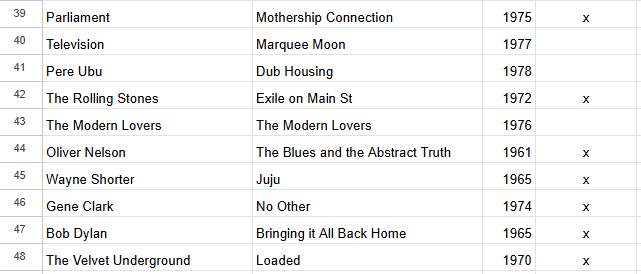
Your Big Board can be created in any program (I keep mine in a Google Sheets file) as long as you can export it as a .csv file. It should have four columns: Artist (column A), Album Title1 (column B), Year of Album Release2 (column C), Whether Owned (column D). For this last column, you simply put an ‘x’ in the cell if you own it or keep it blank if you don’t. The rows then act as the rank3.
For example, this is a section of mine:
And this stuff is not static. There is a “Sync Data” button that allow you to update your collection and Big Board whenever needed.
See below to see step-by-step instructions on how to install the program.
What is included in Record Selektah?
Record Selection
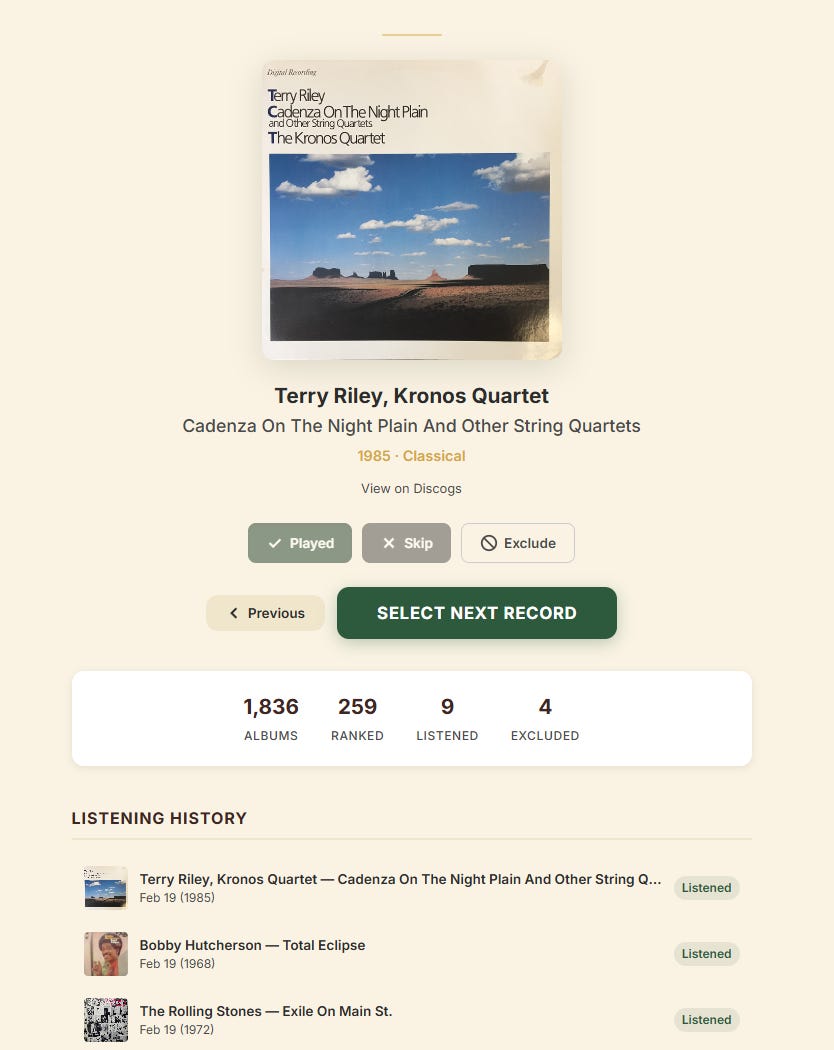
Pretty self-explanatory. Click “SELECT NEXT RECORD” and it will suggest the next record that you spin. Then it gives you a couple of options for logging: Played, Skip, or Exclude.
“Played” logs the album as “listened.”
“Skip” skips the album once.
“Exclude” excludes the record from future selections. This is an option because the app will pull your entire Discogs collection, whether it is a full-length album, a 7-inch single, or a completely different format. So, it may take an initial run through to toss out entries that aren’t applicable.
You can then see your immediate listening history below.
Big Board Explorer
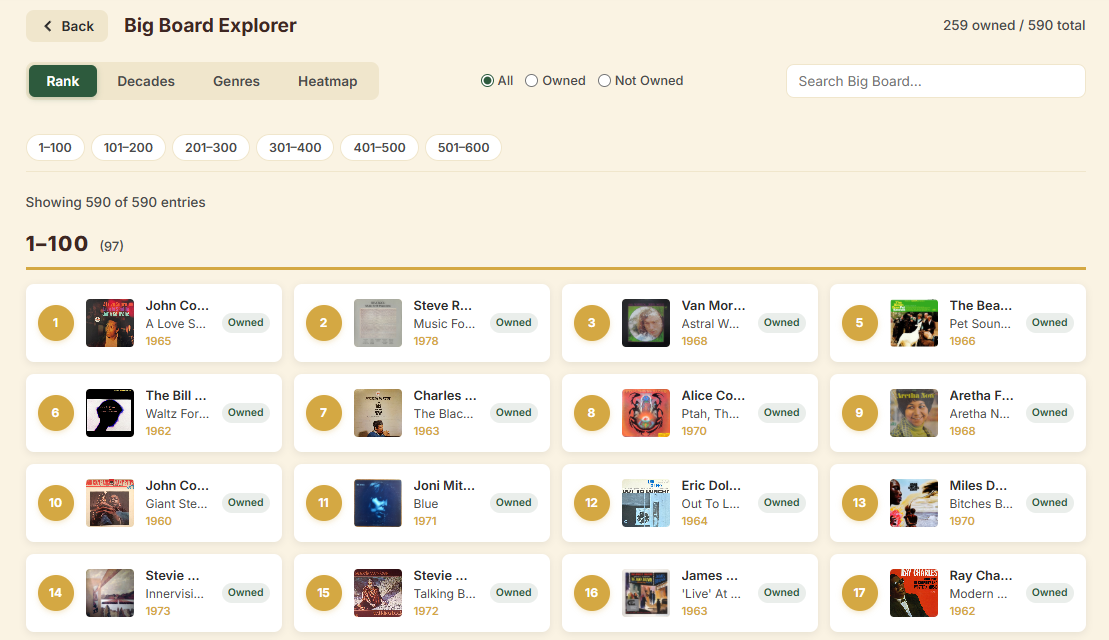
The Big Board Explorer visualizes your Big Board. You can sort in a number of different ways.
The Library
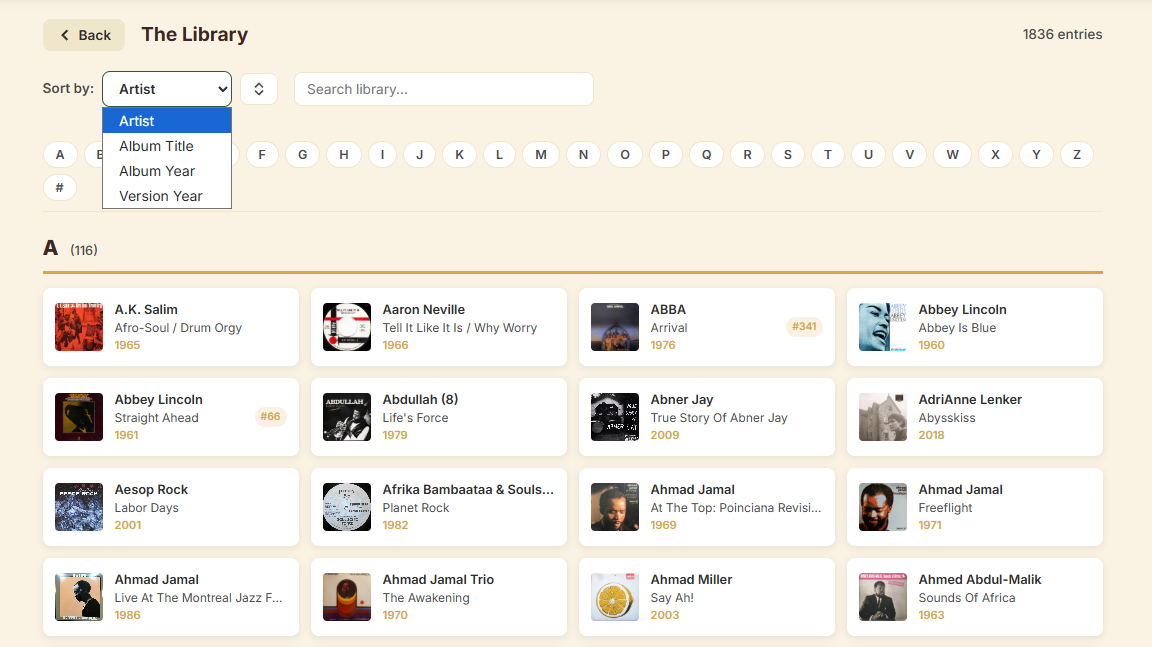
Everything Discogs pulls, able to be sorted in a number of different ways.
This includes the year the album was actually released (at least according to Discogs’ master release for it) as well as the year your particular version of the record was released.
Listening Stats
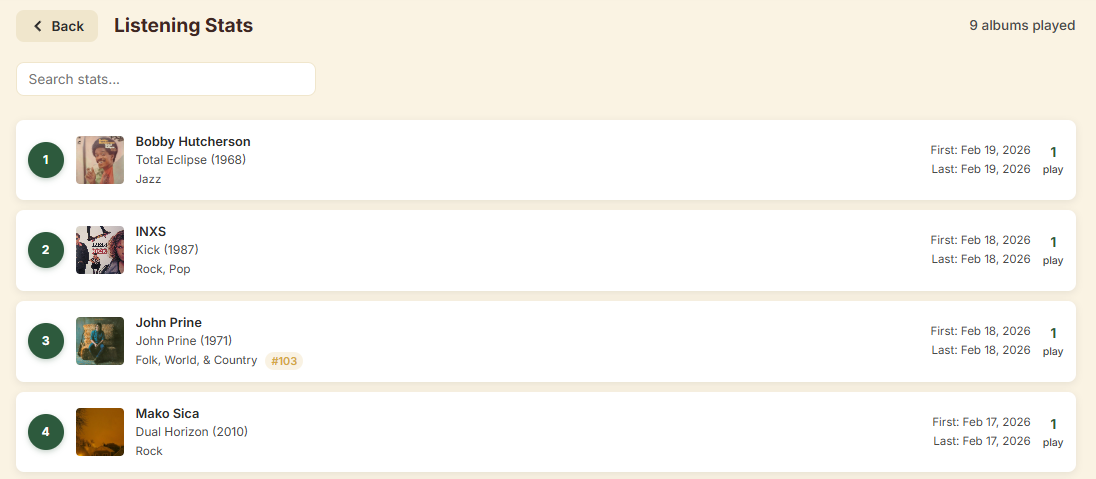
You can check your listening stats, because if you are going to nerd out, you might as well nerd out all the way.
Notice the “#103” next to John Prine. That is the number that it is on your Board Board.
Excluded
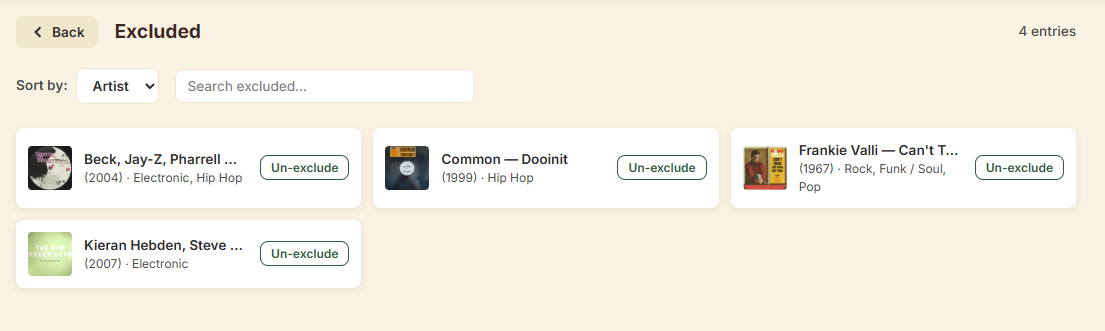
These are the entries you’ve opted to exclude with an option to toss it back into the mix.
Album Details
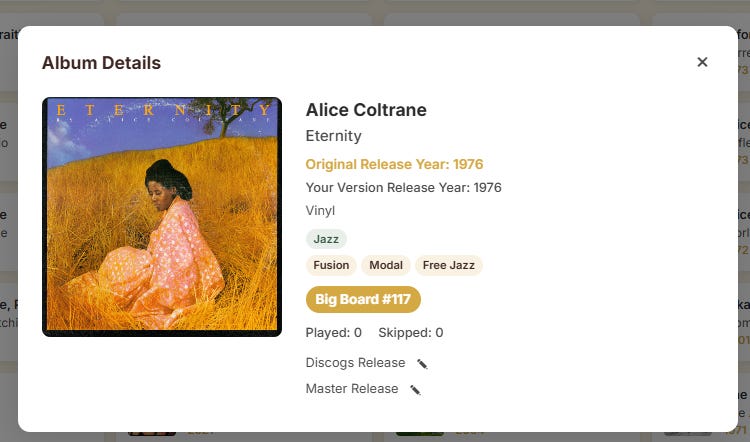
When you click on any of the albums, an "Album Details” window will pop-up. This includes metadata the program pulls from Discogs as well as an option for you to correct links in case the algorithm errored when compiling.
How do I set this up on my computer?
Here is a step-by-step guide to setting this up on your computer. I’m writing this (with the help of Claude) in a way that I would personally need to do it. So, for you more technically-proficient out there, please be patient with us dummies. Sorry if this is still convoluted. It’s the best I can do!
Step 1: Install Python
As mentioned above, Python is a programming language. You don’t need to learn it, you just need it installed on your computer because the app is built with it. Think of it like needing a DVD player to play a DVD.
Go to python.org/downloads and download the latest version. Run the installer, and make sure to check the box that says “Add Python to PATH” before you click Install. This is easy to miss and important.
Step 2: Install Git
Git is a tool that lets you download code from GitHub (where the app’s code lives). Go to git-scm.com/downloads and download it for your operating system. Run the installer. You can accept all the default settings.
Step 3: Open a terminal
On Windows: Open the Start menu and search for “Git Bash.” Open it. You’ll see a black window where you can type commands.
On Mac: Open the app called “Terminal” (you can find it by searching in Spotlight).
This is where you’ll type the commands in the remaining steps. Don’t be intimidated — you’re just copying and pasting.
Step 4: Download the app
In your terminal, type this and hit Enter:
git clone https://github.com/mprdolo/record-selektah.git
This downloads the app to your computer. Then type:
cd record-selektah
This moves you into the app’s folder.
Step 5: Install the app’s dependencies
The app needs a few small helper programs to run. This one command installs all of them:
pip install -r requirements.txt
Wait for it to finish. You’ll see some text scrolling — that’s normal.
Step 6: Get your Discogs API token
The app connects to your Discogs account to pull in your collection, so you need to give it permission.
Log into your account at discogs.com
Click “Generate new token”
Copy the long string of characters that appears — that’s your token
Step 7: Configure the app
In your terminal, type:
cp .env.example .env
This creates your personal configuration file. Now you need to edit it. Type:
On Windows (Git Bash):
notepad .env
On Mac:
open -e .env
This opens a text file. You’ll see two lines. Replace the placeholder text with your Discogs info:
DISCOGS_TOKEN=paste_your_token_here
DISCOGS_USERNAME=your_discogs_username
Save the file and close it.
Step 8: Launch the app
In your terminal, type:
python app.py
You should see a message that says the app is running. Open your web browser and go to:
http://localhost:3345
You should see Record Selektah!
Step 9: Sync your collection
Click “Sync Data” in the top right corner, then click “Sync Discogs Collection.” This pulls in every record from your Discogs account. It may take a minute or two depending on the size of your collection.
That’s it — you’re ready to start spinning. Click “Select Next Record” and let the Selektah do its thing.
Step 10 (Optional): Set up your own Big Board
The Big Board (see above) is a way to tell the app which albums you like most. It’s a simple ranked list: your favorite album is row 1, your second favorite is row 2, and so on. When you have a Big Board, the app will select albums you’ve ranked higher more often (though it will still mix in everything else so you’re hearing your whole collection).
You don’t need a Big Board to use the app. But if you want one, here’s how:
Open the
datafolder inside therecord-selektahfolder on your computer. You’ll see a file calledbig_board_sample.csv. Open it. It shows you the format.Create your own file called
big_board.csvin that samedatafolder. You can do this in Excel, Google Sheets, or any spreadsheet program. It needs four columns:
Artist,Title,Year,Owned
Radiohead,OK Computer,1997,x
Miles Davis,Kind of Blue,1959,
Talking Heads,Remain in Light,1980,x
The order of the rows is your ranking: the first row is your #1 album, the second row is #2, etc. Put an x in the Owned column for albums you own. Leave it blank for albums you don’t.
When you’re done, save it as a CSV file (in Google Sheets: File → Download → Comma Separated Values; in Excel: Save As → CSV).
In the app, click “Sync Data” then “Import Big Board CSV.” The app will match your list to your Discogs collection and start factoring your rankings into its selections.
If you update your Big Board later, just replace the CSV file and click Import again. Your listening history stays intact.
Step 11 (Optional): Create a desktop shortcut
If you don’t want to open the terminal every time you use the app, you can create a shortcut that launches it with a double-click.
On Windows:
Open the
record-selektahfolder on your computerFind the file called
install.pyDouble-click it (or run
python install.pyin your terminal)This creates a shortcut on your desktop — double-click it any time to launch Record Selektah
On Mac:
For now, the easiest approach is to open Terminal and run these two commands each time:
cd record-selektah
python app.py
Then open
http://localhost:3345
in your browser. It takes about five seconds once you’re used to it.
I still have questions!
Cool, hit me up in the comments. I wish I could make this more user-friendly, but then I would need to be more technically proficient. Working on it!
You’ll want to get this as close to matching the official album title as possible. Otherwise, there will be a lot of manually fixing later.
I actually don’t think this is important for the algorithm, because you will prompt it to fetch the master release dates from Discogs later. I just happened to have mine set up this way when I created the app, so now it is baked in. Sorry!
The far-left column below is the automatic row numbering by Sheets, not something I manually added. So, the column that starts with “Parliament” is column A.